How do I add or remove Steam Workshop mods on Project Zomboid, and why does a removed mod sometimes keep loading?
Last reviewed July 2026
Project Zomboid mods are managed most easily through the Workshop Mods page in your server's sidebar. It reads and writes your server's mod list for you, so day-to-day changes do not need any file editing.
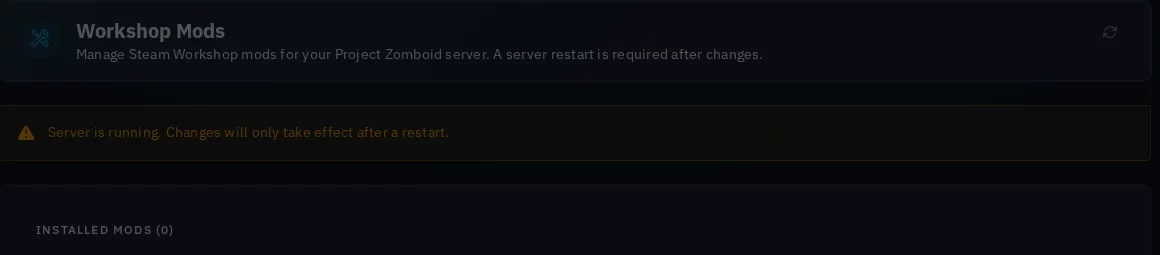
To add a mod, find it on the Steam Workshop and note two IDs: the Workshop ID (the number in the URL after ?id=) and the mod's internal Mod ID (listed on the mod's Workshop page under the description, usually in a line reading "Mod ID: xxx"). Check the mod's Workshop page loads normally before adding it - a mod that has been removed from Steam can stop your server starting, not just fail to load. Some mods list more than one Mod ID; add a separate entry for each one, using the same Workshop ID each time. On the Workshop Mods page, enter both IDs under Add Mod, click Add Mod, then click Save Changes. Restart your server for the mod to download and load.
To remove a mod, click the trash icon next to it in the Installed Mods list, then click Save Changes; the removal is not written to your server's configuration until you click Save Changes, so don't skip that step. If you close the page or move to another tab before saving, the mod is still listed in your server's config and it will keep trying to load a mod that is effectively gone, which can show as a load error in the Console or stop the server starting cleanly.
If a mod you removed still seems to be loading after you have saved and restarted, go back to the Workshop Mods page and confirm it is genuinely gone from the Installed Mods list. If it is gone there but the server still references it, check the WorkshopItems and Mods lines directly in File Manager (see below) for a leftover entry, remove it by hand, save, and restart again. If it keeps happening, contact support.
If you prefer to edit the config directly, or need to bulk-edit a long mod list, the same data lives in File Manager at .cache/Server/<your server name>.ini (the default name is servertest unless you changed it), in the WorkshopItems (Workshop IDs) and Mods (Mod IDs) lines, both semicolon-separated and in the same order. Stop the server before hand-editing this file directly.
If a mod fails to load after adding it, or your server won't start at all after adding one, check the Workshop ID is valid and still published on the Workshop first - a mod that has been removed from Steam can stop your server starting. If the ID checks out, the next most common cause is a missing dependency mod that also needs to be added.
Want to try this on a real server?
Everything described here is available on the trial too, on the same hardware and the same panel as the paid plans. Try it free for 24-hour, no credit card required.
Didn't fix it? Ask in Discord.
Ask in our Discord - we help with hosting questions whether or not you host with us.