How do I update my Project Zomboid server, and what do Build 41 and Build 42 mean?
Last reviewed July 2026
Project Zomboid currently has two versions in active use: Build 41, the long-running previous release, and Build 42, the newer release. Steam updates your desktop game to whichever branch your client is set to, and your server stays on whichever branch it was installed with, so the two can end up on different builds without either side doing anything wrong.
When that happens, connecting shows the error "Client version does not match server version", followed by both version numbers. This message is not a sign anything is broken; it simply means your client and server disagree on which build to run, and the fix is to put them on the same one.
The panel tells you which build your server is on without you having to work it out. If your server is behind the latest release, you will see an "Update available" notice on the Console page. We are currently improving how server updates are applied, so if an update does not appear to take effect, open a support ticket and we will sort it for you rather than leaving you to work around it.
If your server is pinned to a non-default branch, the panel shows a badge next to the server name saying which branch, so you always know at a glance whether you are matched to the standard release or a beta.
The Startup page has a field labelled "Steam Beta Branch [requires reinstall]" that controls which branch your server installs. Leave it blank. Blank means the current, default release, and it is what almost everyone wants; most people never need to touch this field at all.
On a server you are setting up for the first time, blank and choosing the current release outright do the same thing. On a server that is already running, they do not: blank leaves your server on whatever branch it already has, it does not move it back to the current release. Only entering public explicitly moves an existing server onto the current release; blank alone will not do it, because blank means no branch was requested, not a request for the current one. This is worth knowing even if you never touch the field yourself, because it explains something that looks wrong but is not: a server stuck on an older build does not sort itself out just because this field looks empty.
The dedicated server your panel runs is a separate Steam application from the game itself, not the same program, so its list of available branches is not guaranteed to match your desktop game's list. The field only accepts branch names Steam actually publishes for the server application, and typing anything else fails instantly with an error that gives no useful explanation, so an unfamiliar branch name is not a safe guess. To find the real, current list, check the Betas tab for the tool named "Project Zomboid Dedicated Server" in your own Steam library. Every branch listed there is a genuine option for your server. This list can change as branches are added or retired, so checking it directly is more reliable than any fixed list we could put here.
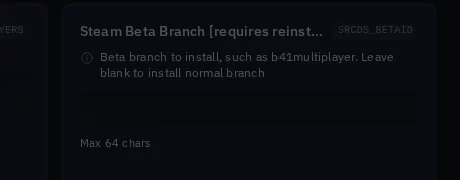
Branch selection works reliably when you create a NEW server: pick the branch you want at setup and it installs correctly. Switching the branch of an existing server is something support can do for you: contact us with your server ID and the branch you want, and we'll handle it directly rather than have you use this field yourself.
Reinstalling does not change your branch and cannot fix an invalid value in that field. A reinstall reinstalls whatever the field currently says, so if it holds a branch name that does not exist, reinstalling fails the same way every time, for the same reason. Correct the field first.
Here is what actually happens when a server's branch changes, whether it's a new server being set up on a chosen branch or an existing one being moved by support: the server is reinstalled and its game files are replaced with the files for the new branch. If the server has a world made on a different build, that world will not load afterward. Nothing gets deleted; the new build's files genuinely cannot read a world made on the other build, and there is no tool that converts one into the other. Because of this, take a backup of your server before any branch switch, and confirm it actually completed before going ahead, not just that you started one. One thing worth knowing: a backup taken while your server was on a given build restores that build when you use it, not just the world files inside it. So a backup taken before switching branches is also your way back if you change your mind afterward.
If your server has recently changed branch and then fails to start with errors that mention map or world data, that does not necessarily mean your world is damaged. Occasionally a branch change does not fully replace every game file, and older files can end up mixed in with the new ones. The errors point at map data because that is what breaks first, but the cause is the install itself, not your save. Restoring a backup will not fix this, since your world was never the problem, and you would likely see the same errors afterward. If this happens after a branch change, contact support rather than restoring a backup yourself.
To change which branch your own Steam client (the game you play, not the server) uses, open Steam, right click Project Zomboid in your library, choose Properties, then the Betas tab, and select the branch that matches your server (or the option to opt out of all beta programs, if your server is on the default branch).
If you are not sure which build your friends or players are on, ask them to check the same Betas tab. Everyone connecting to the same server needs to be on the same build.
Want to try this on a real server?
Everything described here is available on the trial too, on the same hardware and the same panel as the paid plans. Try it free for 24-hour, no credit card required.
Didn't fix it? Ask in Discord.
Ask in our Discord - we help with hosting questions whether or not you host with us.