
How do I set up a DarkRP server for the first time?
Last reviewed July 2026
When your server first starts it will be running the default GMod sandbox gamemode. Switching to DarkRP and setting it up end to end happens across three panel pages: Config Editor, Addon Manager, and Admin Ranks. This guide walks through each step with the actual panel screens.
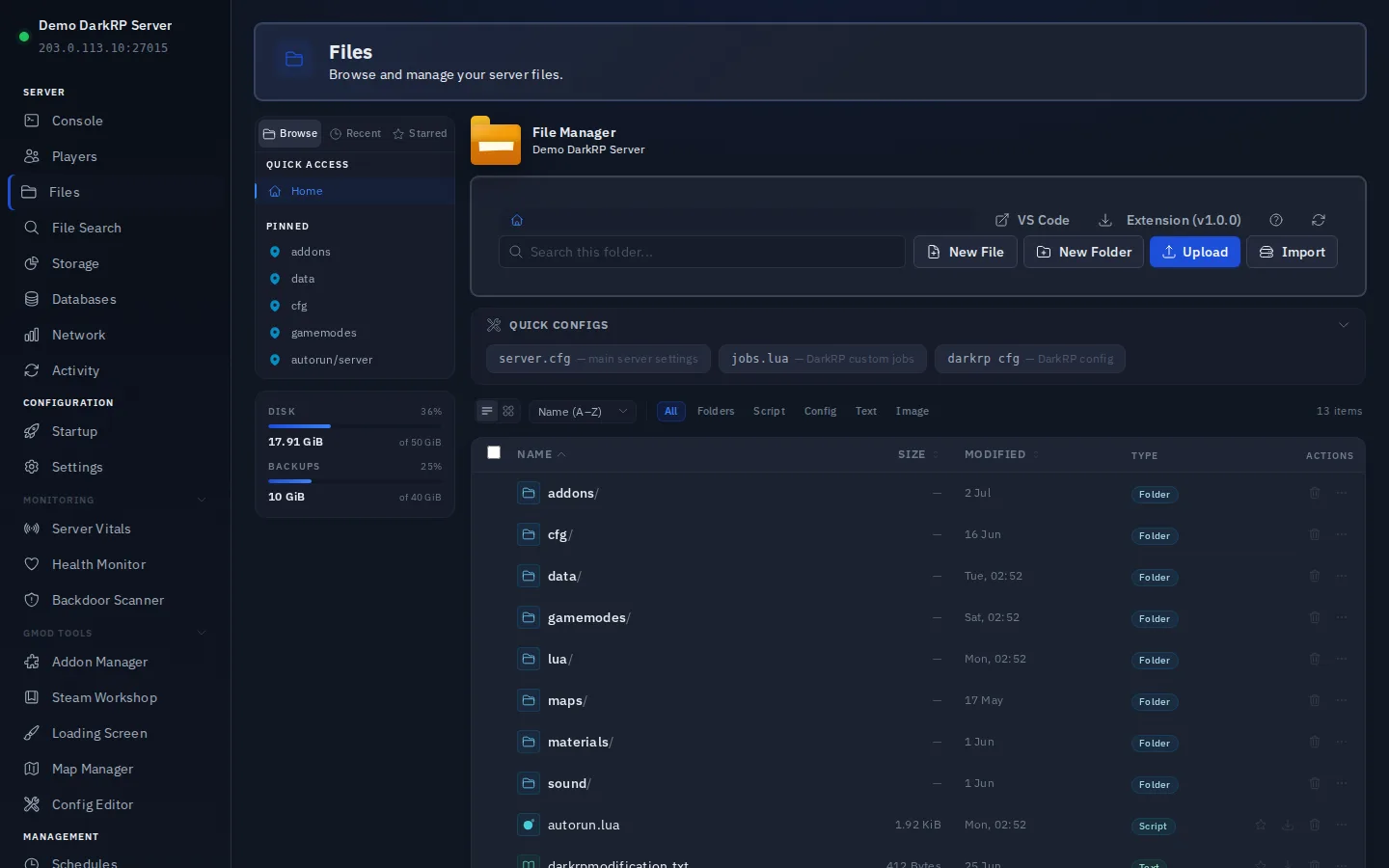
The quickest way to switch to DarkRP is the Config Editor: open Config Editor in the sidebar (under GMod Tools), select the Server Config tab, and click the DarkRP preset. It writes the DarkRP-appropriate gamemode setting straight to garrysmod/cfg/server.cfg. Restart the server and DarkRP loads on the next start. If you would rather edit the file directly, open File Manager, edit garrysmod/cfg/server.cfg by hand, add the line gamemode darkrp, save, and restart; both routes write to the same file.
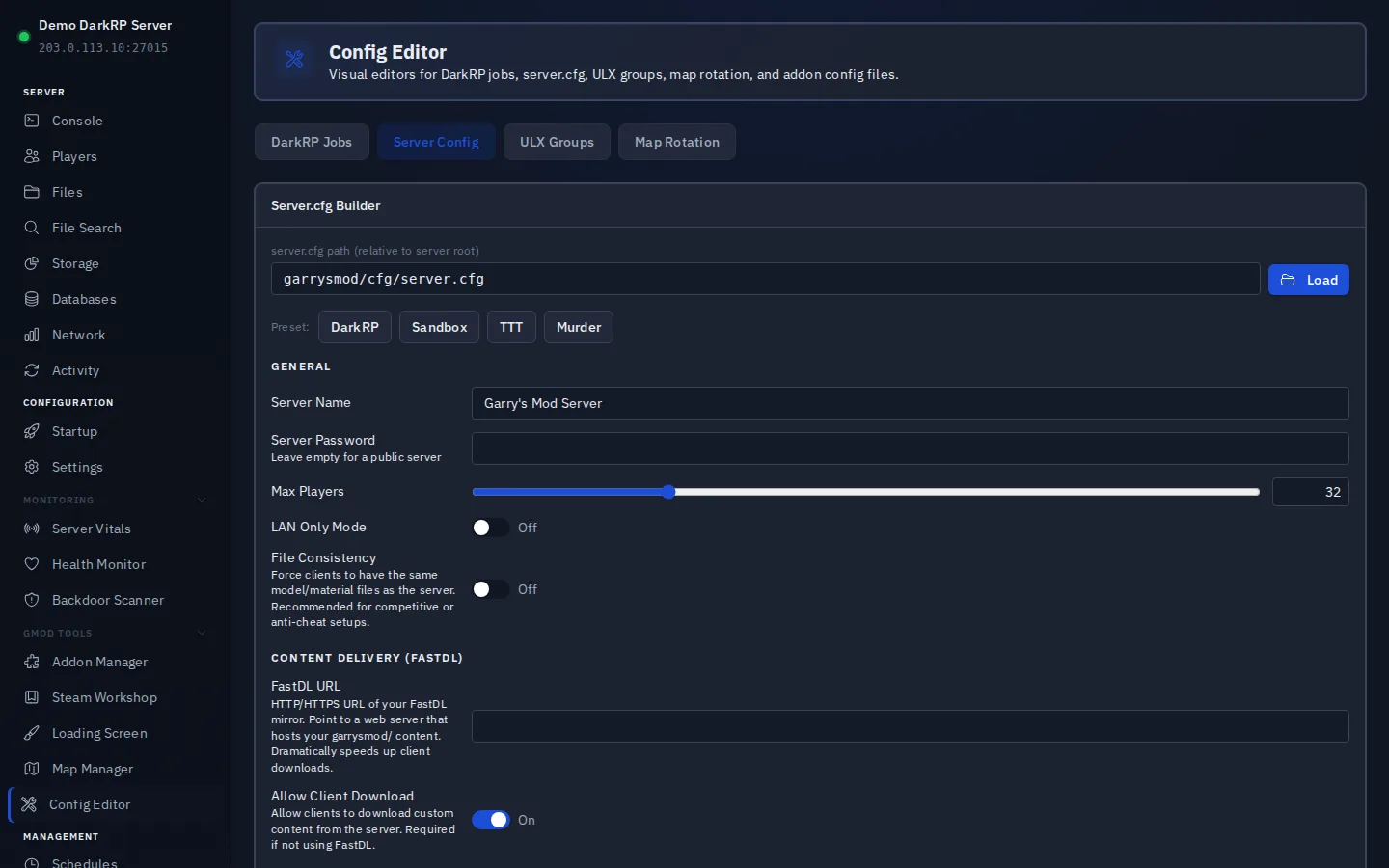
Custom jobs live in garrysmod/addons/darkrpmodification/lua/darkrp_customthings/jobs.lua. The file ships with example jobs you can edit or replace. The Config Editor has a dedicated DarkRP Jobs tab: point it at that jobs.lua path, load the file, and add or edit jobs (name, description, player model, salary, team) through the form instead of hand-editing Lua. Saving writes the file back; restart to apply. You can still edit the file directly in File Manager if you prefer.
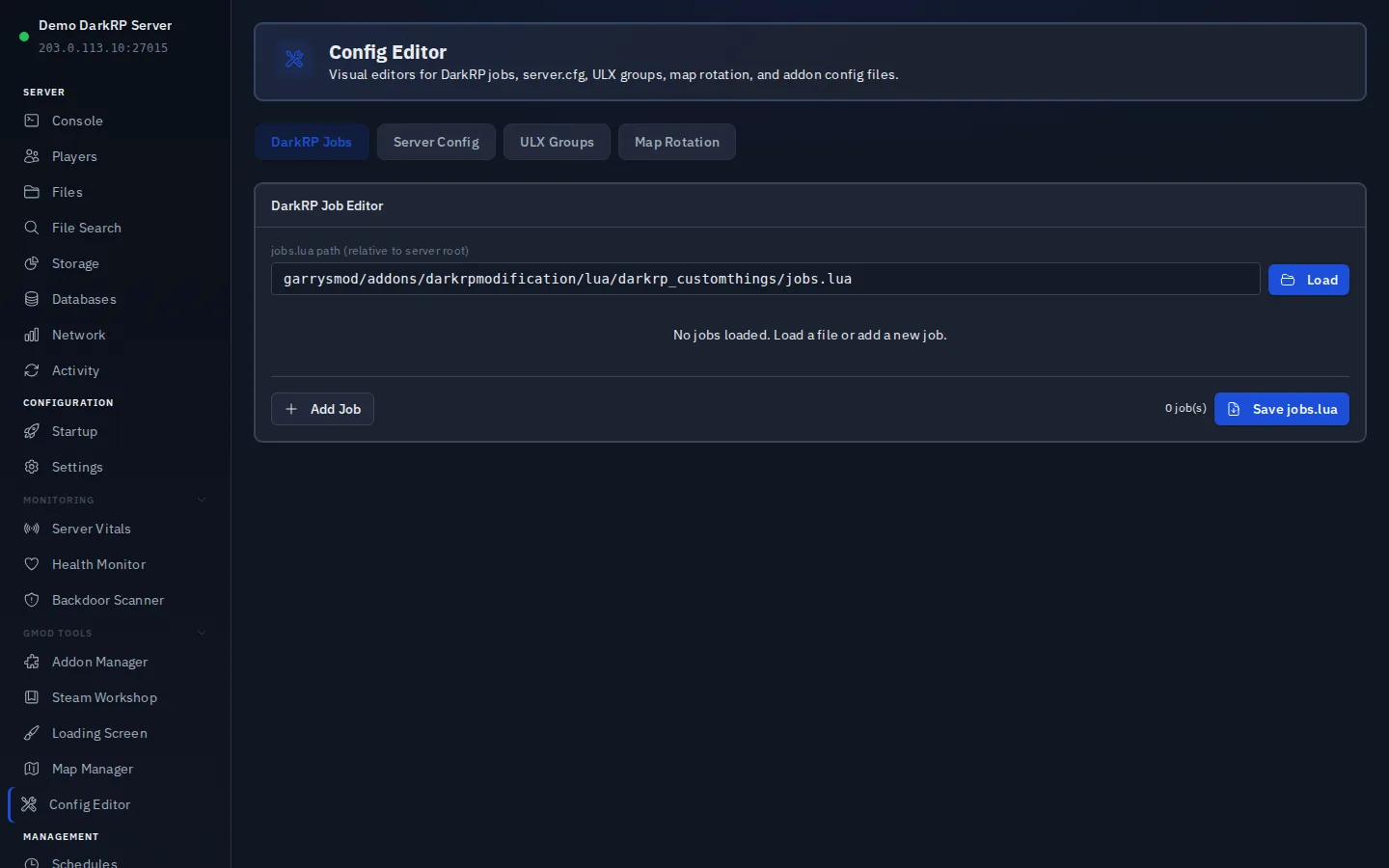
For admin management, most DarkRP servers use either ULX or SAM. Install ULX by adding the ulib and ulx addons from the Addon Manager (GMod Tools section of the sidebar) with a single click, or upload them manually via File Manager. SAM is a paid addon sold on GmodStore, not something the Addon Manager can fetch automatically; if you buy it, upload the sam folder via File Manager and configure ranks through its in-game interface (F1 or type sam in console).
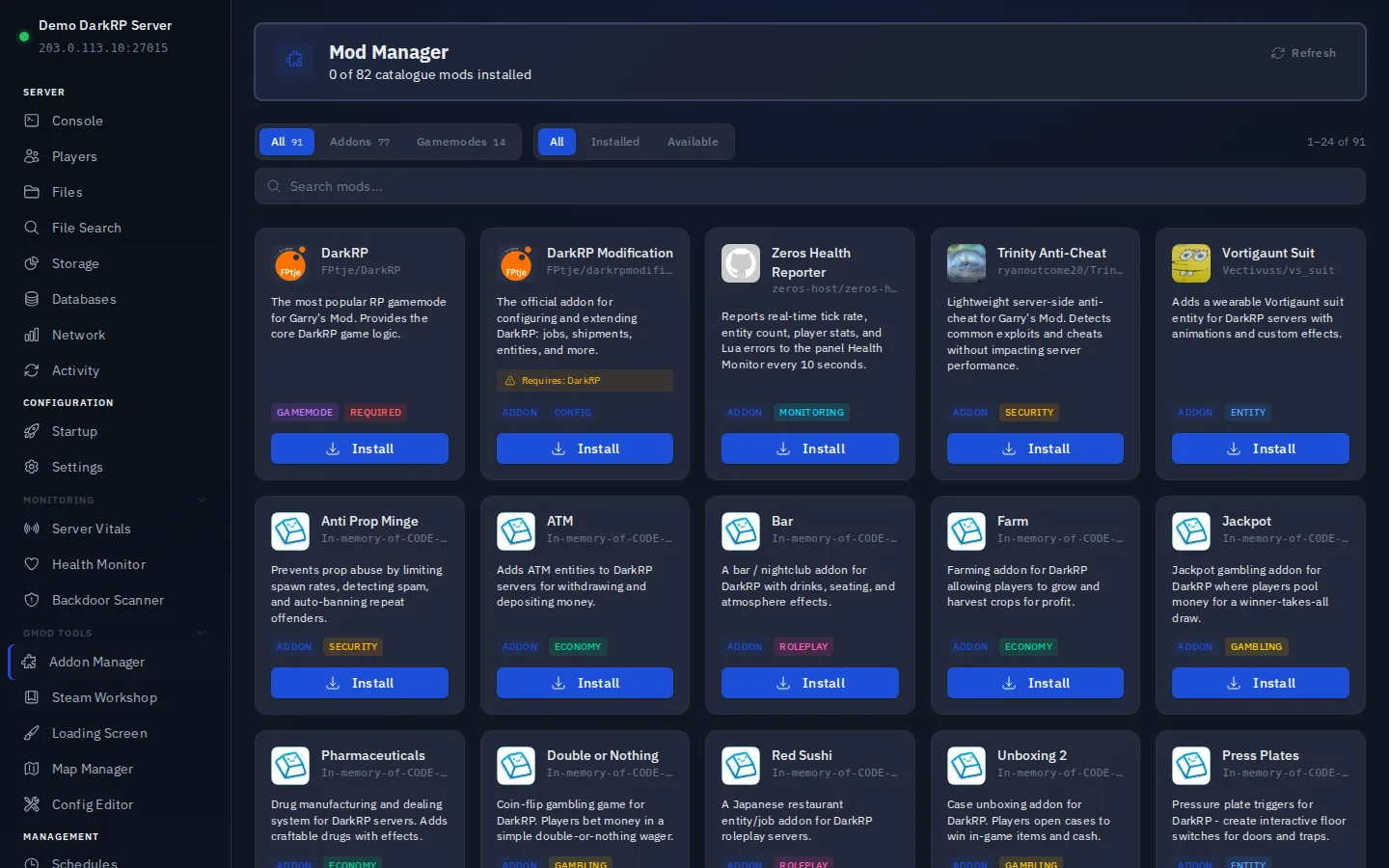
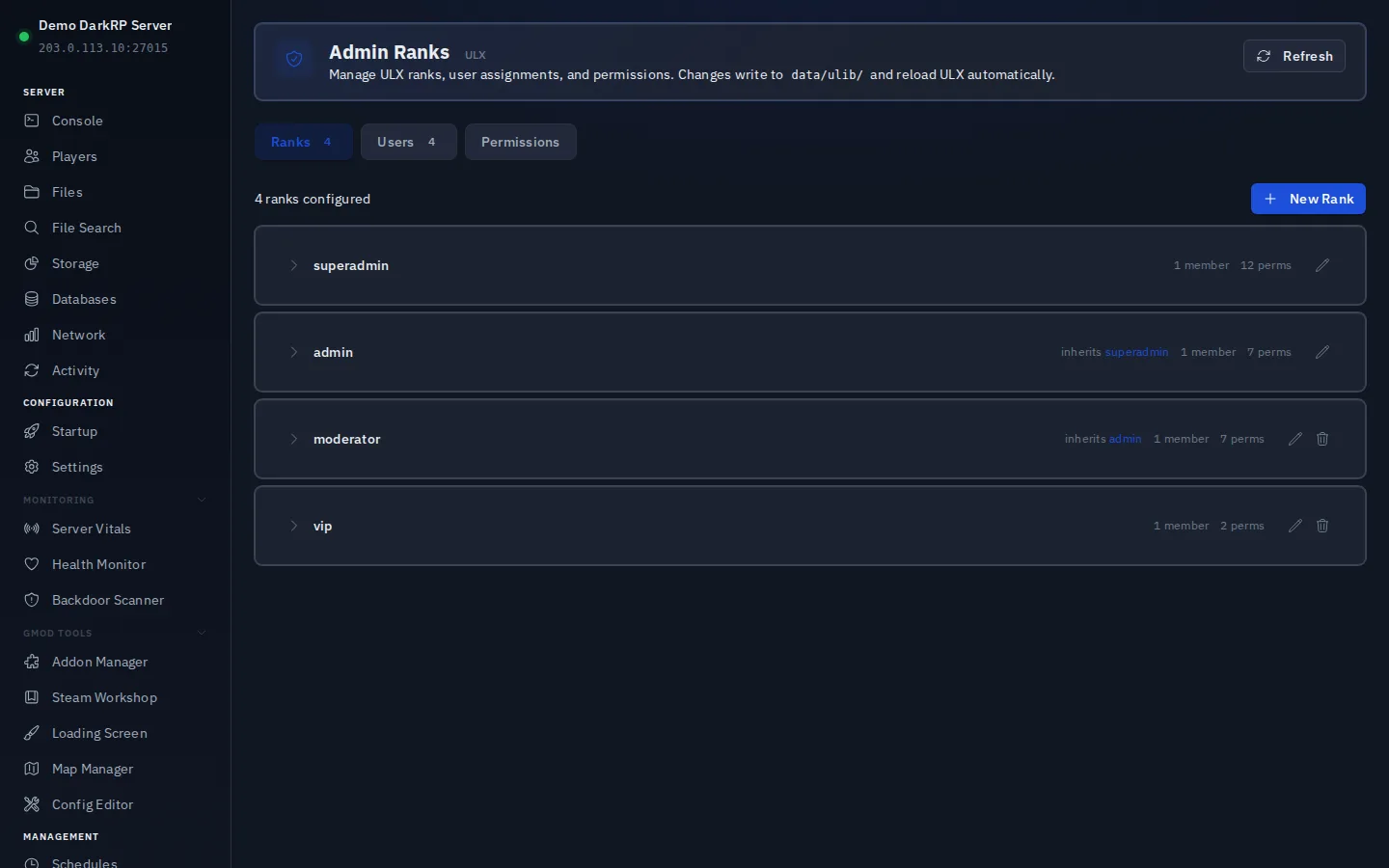
Once ULX is installed, the Admin Ranks page (under Configuration in the sidebar) reads and writes your ULib rank data directly, so there is no need to touch groups.txt or users.txt by hand. The Ranks tab lists every configured rank with its inherit chain, member count, and permission count. Assign yourself superadmin by entering your 64-bit SteamID on the Users tab; changes reload ULX live, with no restart needed.
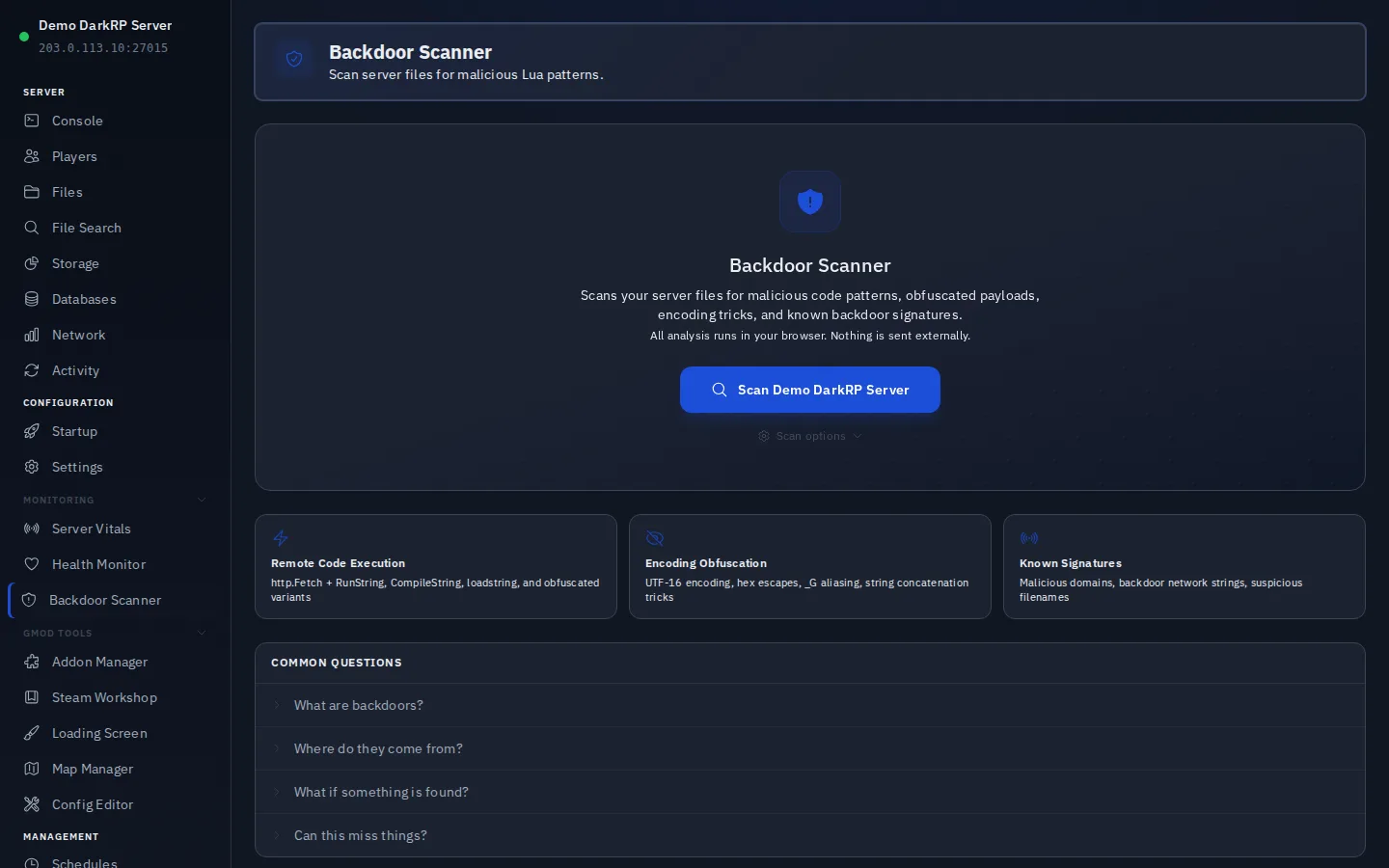
After installing any addons from third-party sources, run the Backdoor Scanner from the Monitoring section of the sidebar. It scans your Lua files in the browser for known malicious patterns, things like hidden remote access code that sometimes ships inside free addon packs, and flags anything suspicious before the server opens to players.
Once the admin mod is set up, admins can kick, ban, and manage players in-game. Use the Admin Ranks page any time the rank hierarchy needs adjusting; it reloads live with no restart.
Want to try this on a real server?
Everything described here is available on the trial too, on the same hardware and the same panel as the paid plans. Try it free for 24-hour, no credit card required.
Didn't fix it? Ask in Discord.
Ask in our Discord - we help with hosting questions whether or not you host with us.