
How do I create, restore, and schedule backups?
The Backups page in your panel sidebar covers all backup operations. Backups capture your server configuration files, addons or plugins, and world data.
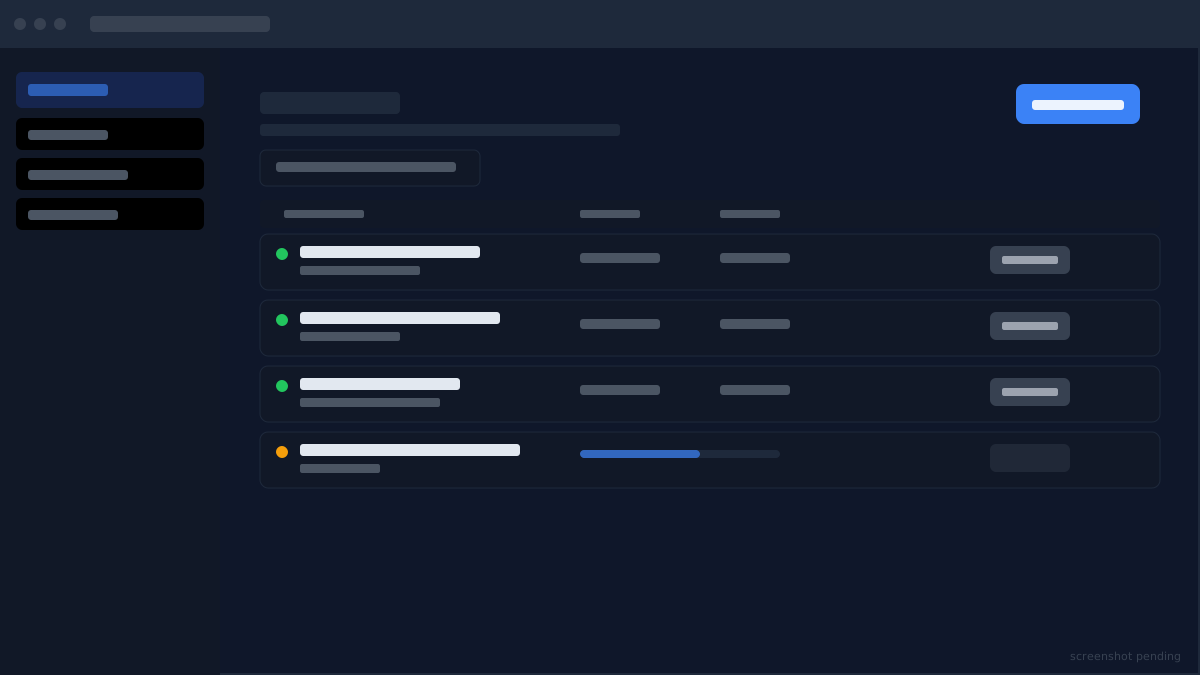
To create a manual backup, click "Create backup". You can optionally give it a name so you can identify it later. The backup runs in the background; you will see it appear in the list with a status indicator. When it completes, it shows the timestamp and file size.
To restore a backup, find it in the list and click Restore. The panel stops your server, replaces the current files with the backup snapshot, and leaves the server stopped so you can verify things look right before starting again. Restoring overwrites your current files, so if you want to keep the current state first, create a new manual backup before restoring an older one.
For scheduled backups, enable the schedule toggle on the Backups page and set your preferred frequency. When the backup limit for your plan is reached, the oldest backup is removed to make room for the new one. Check your plan tier for the number of slots available.
Didn't fix it? Ask in Discord.
Ask in our Discord - we help with hosting questions whether or not you host with us.